Badges
Show your Site's verified Visitors on your own pages, with a Badge that links to its live dashboard.
Anyone can write "3K visitors a month" on a landing page or a sponsorship page. A Badge proves it: a small image with your Site's domain, its Visitors over the last 30 days and "verified by Supersaas Analytics", linked to the Site's read-only dashboard, so a reader can check the number where it comes from.
The number is always Visitors over the last 30 days, never a metric you choose, so any two Badges compare. The branding stays on every plan, because it is what makes the number believable.
Turn it on
A Badge belongs to a Share link. In the Site's Settings → Sharing, create a Share link without a password (or use one you have), then turn on its Badge switch. Owners and Admins can do this; Viewers cannot.
A Share link with a password cannot have a Badge, and a Badge's Share link cannot be given one; turn the Badge off first. Share links for a single Outbound link have no Badge.
Under the link, pick a theme and a size, check the preview and choose Copy snippet.
Add it to your site
The snippet is plain HTML: an image inside a link to the Share link. Paste it wherever your page accepts HTML.
<a href="https://supersaasanalytics.com/share/your-token?ref=badge" target="_blank" rel="noopener nofollow">
  <img src="https://supersaasanalytics.com/badge/your-token.svg?theme=auto&size=small"
       alt="example.com traffic, verified by Supersaas Analytics" width="200" height="48"/>
</a>
The link is nofollow on purpose: search engines treat followed links in widely copied widgets as a link scheme, and
a Badge is there to be seen and clicked, not to pass ranking.
Markdown and READMEs
GitHub, GitLab and most Markdown renderers accept the same two URLs as a linked image. Take them from your snippet:
[](https://supersaasanalytics.com/share/your-token?ref=badge)
GitHub also renders the HTML snippet as it is, and keeps its width and height.
Notion
Type /image, choose Embed link and paste the image URL (the src of your snippet). Notion images cannot be
links, so put the Share link in the image's caption, or in a line of text under it.
Themes and sizes
The image URL takes two parameters, so you can change them in the snippet without coming back to Sharing:
| Parameter | Values | |
|---|---|---|
theme | auto, light, dark | auto follows the viewer's light or dark mode |
size | small, wide | small is 200 × 48; wide is 320 × 48 and adds a sparkline of the 30 days |
Anything else falls back to auto and small. If you change the size, change the width and height of the <img>
with it. The Badge is an SVG, so it stays sharp at any zoom.
What the number means
- Visitors over the last 30 days: today and the 29 days before it in the Site's timezone, the same figure the Share link's dashboard shows for "Last 30 days". Today is still counting, so the number grows during the day.
- Large numbers are shortened, such as
12.4K; the image's title (shown on hover in most browsers) has the exact count. - A Site with no traffic yet shows
0.
Refresh and caching
The image is refreshed at most once an hour and cached at the edge, so showing a Badge stays fast however many pages carry it. Showing it records nothing: no Visitor, no cookie, and it never counts toward your Quota.
Badge clicks
When someone opens the dashboard from your Badge, the link's ?ref=badge adds one to its Badge click count, shown next
to the link in Sharing. It is only a number: the click records no Visitor and sets no cookie.
Turn it off or revoke it
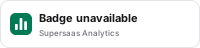
Turning the Badge off, or revoking its Share link, retires it: the image then reads "Badge unavailable", and a revoked link opens nothing. Copies of the image already cached by browsers and the edge can show the number for up to an hour more, and a Badge you have just turned on can read "Badge unavailable" for a few minutes where it was shown before.
Turning the Badge off does not make its Share link secret again: anyone who saw the Badge can still open the dashboard. To end that, revoke the link and create a new one. Turning the Badge on again keeps the same image URL, so a snippet left in place starts working again; a revoked Share link cannot come back.